.png?width=150&height=40&name=grapevine-logo-white_1496x396%20(3).png)
You can now share documents, templates, meeting notes, and other materials with your members through a dedicated Resources tab on your Giving Circle page. This tab only appears when you add a Google Drive folder. Here’s everything you need to know.
How do I add a Google Drive folder?
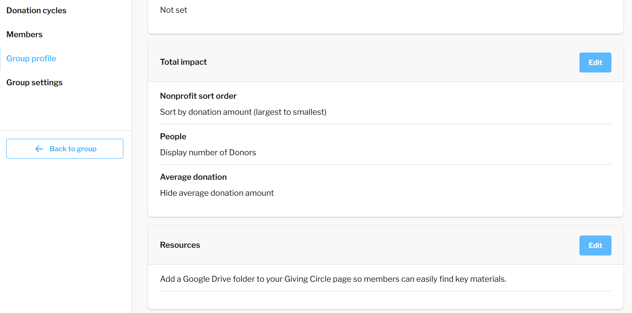
- Visit your Giving Circle
- Click Manage group → Group profile tab
- Scroll to Resources
- Click Edit
- Paste your Google Drive folder URL
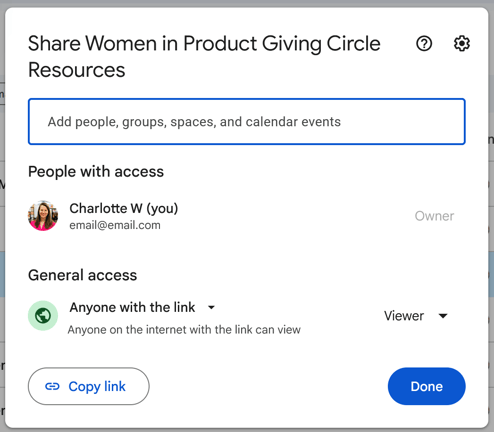
- Make sure your Drive folder is shared as “Anyone with the link can view”
- Save your changes
What types of links are supported?
Only Google Drive folder URLs are supported right now. If the link isn’t recognized as a Drive folder, you’ll see an error.
What if my link isn’t publicly viewable?
If the folder’s permissions aren’t set to “Anyone with the link can view,” members won't be able to open the files without requesting access.
Update this in Google Drive by right-clicking the folder → Share → Set to "Anyone with the link can view"
What happens if Drive shows an error to members?
This is usually caused by permission settings. Switch the folder to Anyone with the link can view, and the error should resolve.
Can I remove the folder entirely?
Yes. Click to Edit the link and then click Remove Google Drive folder.
Removing it also removes the Resources tab from the member view.
Can I reorganize the files from Grapevine?
No. All organization (renaming files, arranging folders, etc.) happens in Google Drive. Changes you make in Drive will automatically appear in Grapevine.